Welcome to Ainoa
Ainoa is your mindful focus companion, designed to help you build healthier digital habits. Whether you want to reduce social media usage, stay focused during work, or simply be more present in your daily life, Ainoa provides gentle but effective tools to help you succeed.
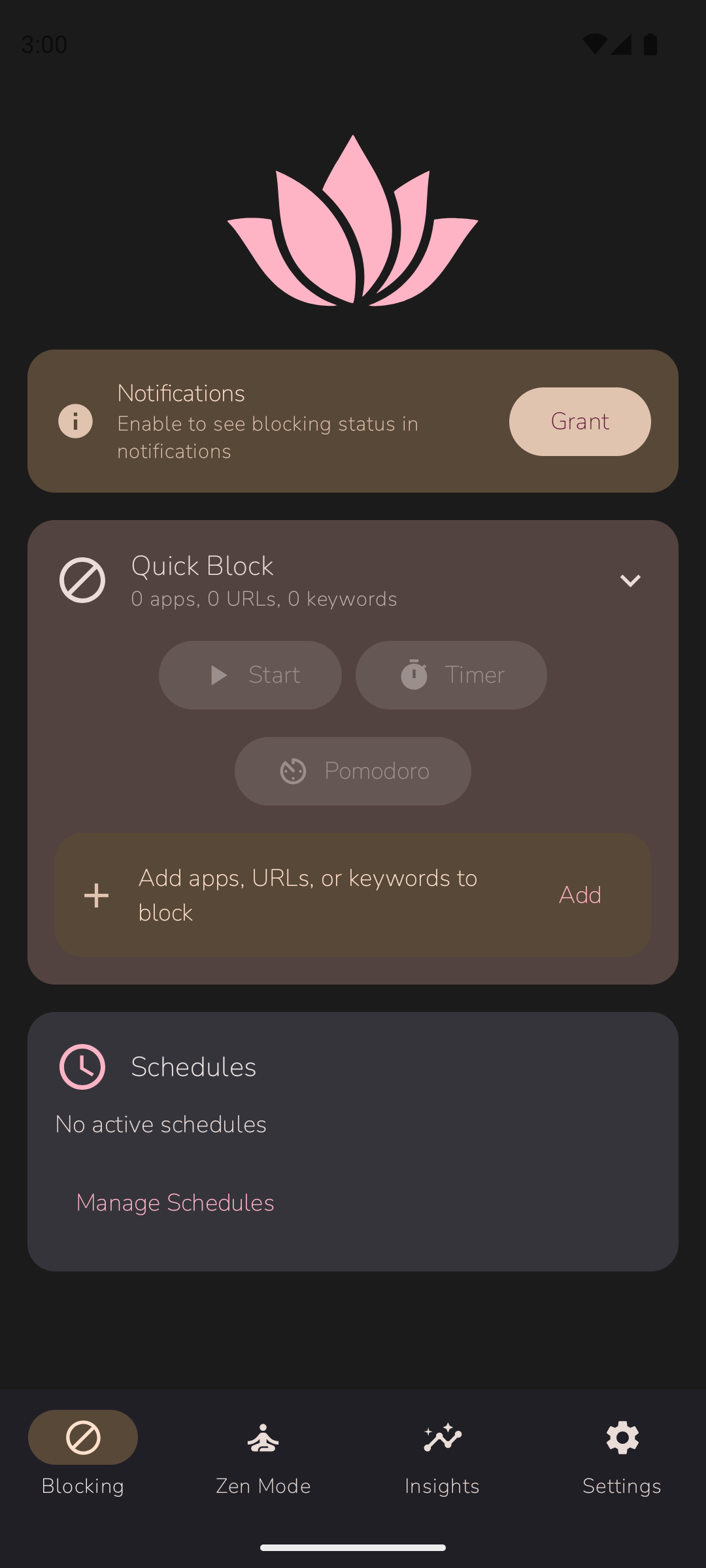
Block Distractions
Block apps, websites, and keywords with flexible schedules that adapt to your lifestyle.
Stay Accountable
Zen Mode locks your settings so you can't give in to momentary temptation.
Track Progress
Track your focus progress with daily stats, streaks, and motivational insights.
Ad-Free Always
Enjoy a calm, clean experience with no advertisements or distractions.
Installation
Ainoa is available on the Google Play Store for Android devices running Android 8.0 (Oreo) or higher.
-
Open Google Play Store
Search for "Ainoa" or "Ainoa Focus" in the Play Store.
-
Install the App
Tap "Install" and wait for the download to complete.
-
Open Ainoa
Tap "Open" or find Ainoa in your app drawer.
Make sure you have a stable internet connection during installation. The app size is approximately 15 MB.
First Setup
When you first open Ainoa, you'll be guided through a simple setup process to get started quickly.
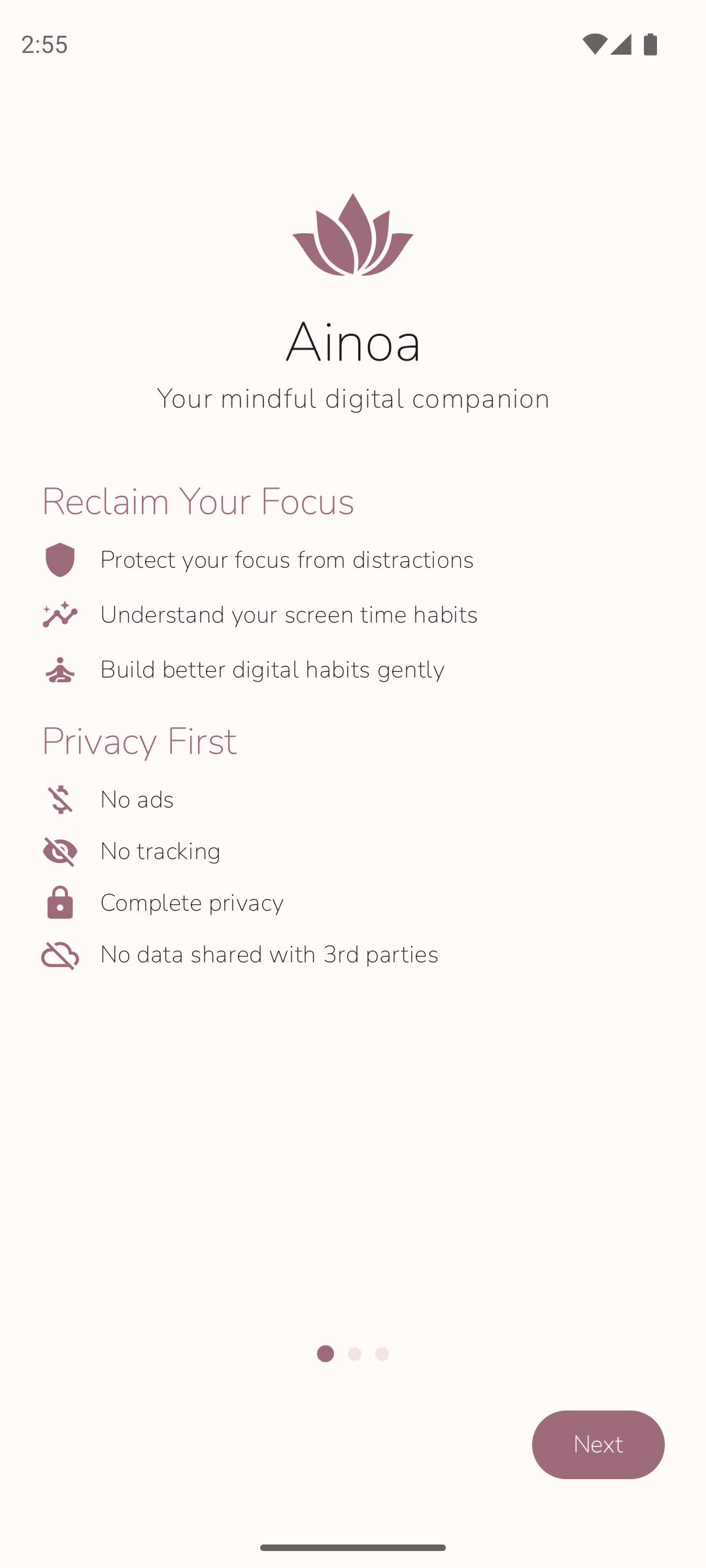
Quick Setup Steps
-
Welcome Screen
Learn about Ainoa's core features and philosophy.
-
Grant Permissions
Enable the necessary permissions for Ainoa to work effectively (see Required Permissions).
-
Quick Block Setup
Select apps you'd like to block immediately. You can always change this later.
-
App Tour
Take a brief tour of the main features to understand how everything works.
Required Permissions
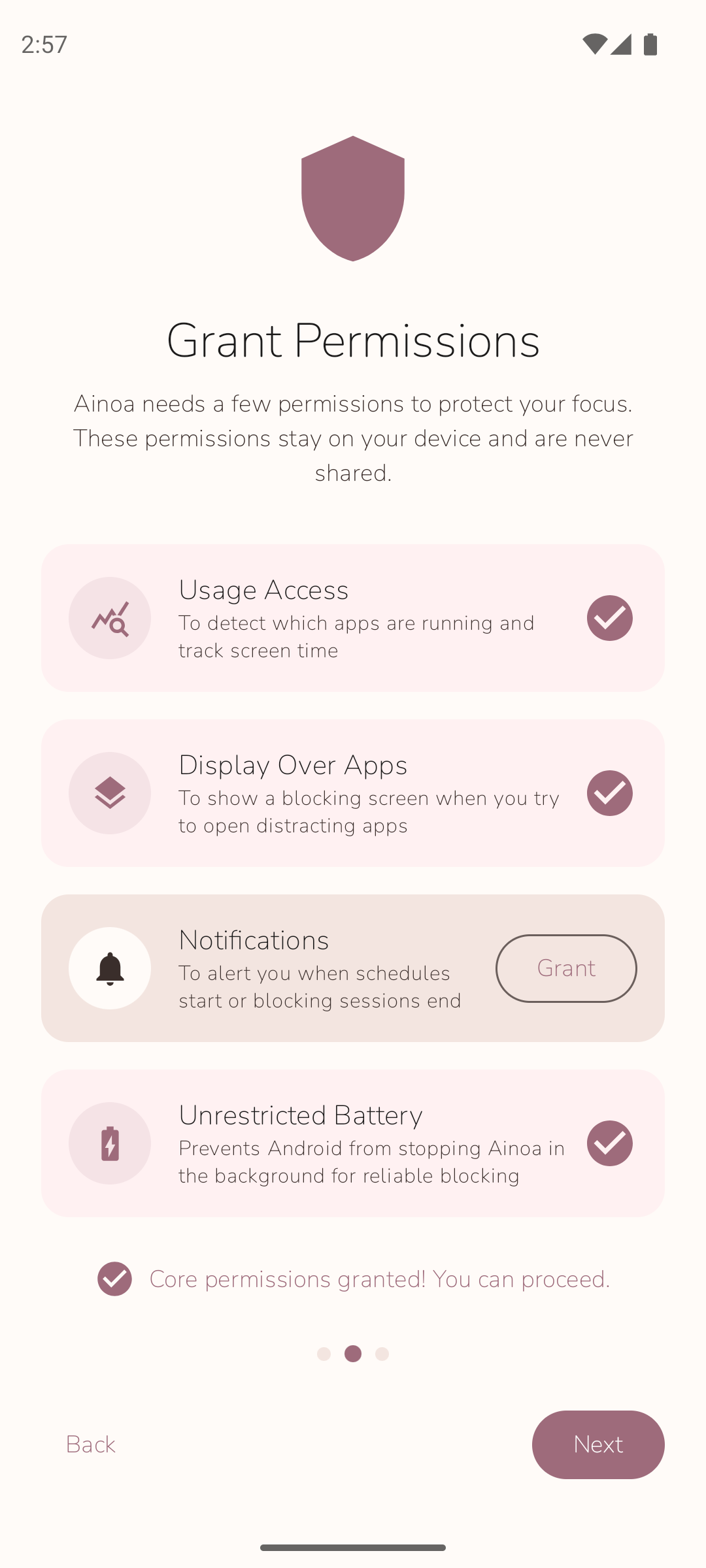
Ainoa requires certain permissions to function properly. Here's what each permission does and why it's needed:
Accessibility Service
This permission allows Ainoa to detect which app is currently in the foreground and display a block screen when you try to open a blocked app.
Ainoa only uses this permission to detect app launches. Your personal data, keystrokes, and screen content are never collected or transmitted.
Usage Access
This permission allows Ainoa to track how much time you spend in apps, which is needed for usage limit schedules and the Insights screen.
Display Over Other Apps
This permission allows Ainoa to show the block screen overlay when you try to open a blocked app.
Notifications
Required to show a persistent notification when blocking is active, and to send reminders or alerts.
Quick Block
Quick Block allows you to instantly block apps, websites, or keywords without creating a schedule. Blocked items remain blocked 24/7 until you remove them.
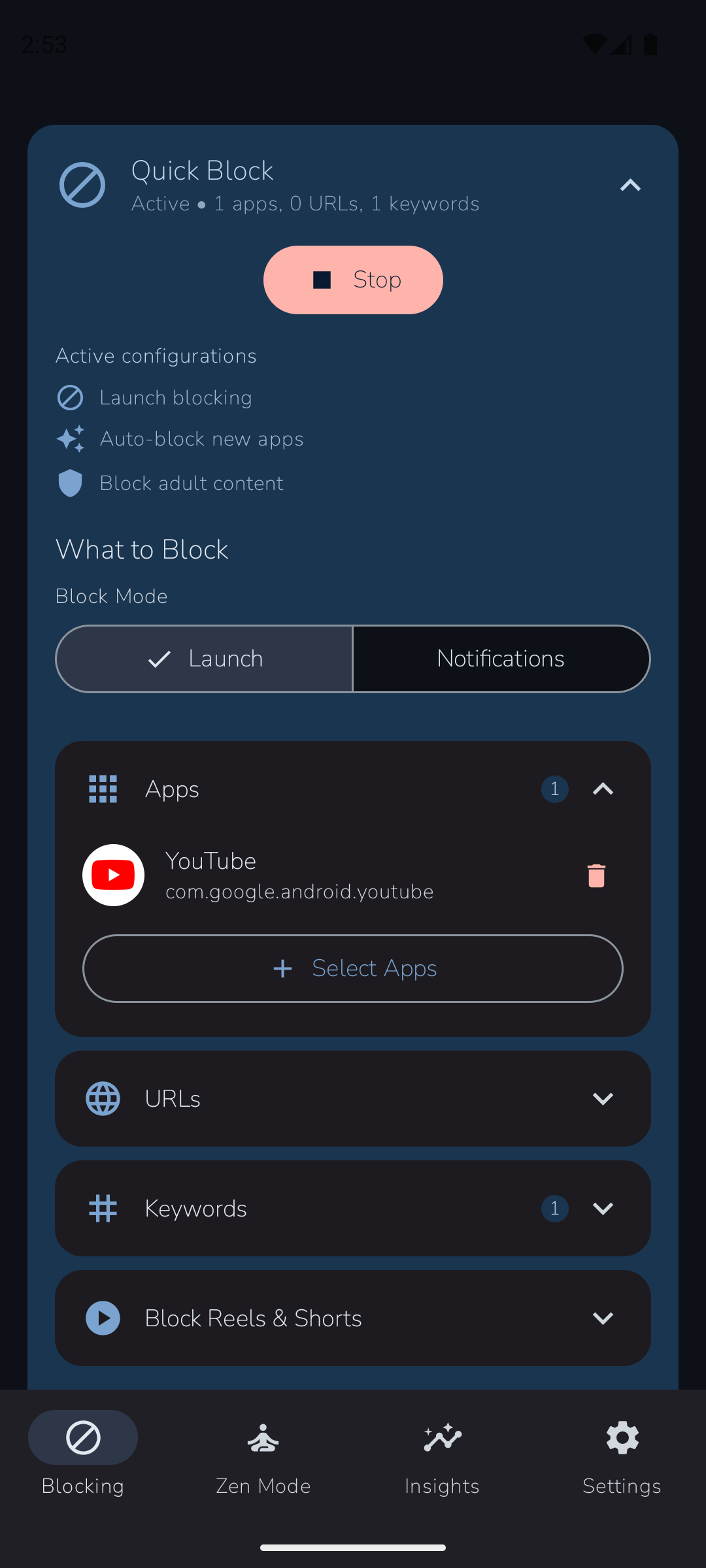
Blocking Apps
Tap the "+" button in the Apps section to see a list of installed apps. Select the apps you want to block. When you try to open a blocked app, Ainoa will display a gentle reminder screen instead.
Blocking Websites
Enter a website URL (e.g., "facebook.com") to block it in supported browsers. Ainoa will redirect you to a block page when you try to visit the site.
Blocking Keywords Premium
Block any app or website that contains specific keywords. For example, blocking "news" will block any app with "news" in its name.
Free users can block up to 2 apps and 2 URLs. Upgrade to Premium for unlimited blocking and keyword support.
Feature Blocking
In addition to blocking entire apps, Ainoa can block specific features within apps. This lets you keep using an app for its core purpose while removing the addictive parts.
Supported Features
- YouTube Shorts: Block the Shorts feed while keeping regular YouTube videos accessible.
- Instagram Reels and Stories: Block Reels and Stories while keeping the main Instagram feed.
- WhatsApp Status and Channels: Block Status updates and Channels while keeping messaging.
- Snapchat Spotlight and Stories: Block the Spotlight feed and Stories.
Feature blocking uses the Accessibility Service to detect when you navigate to a blocked feature within an app. Ainoa will display a gentle block screen, redirecting you away from the distraction while leaving the rest of the app usable.
Schedules
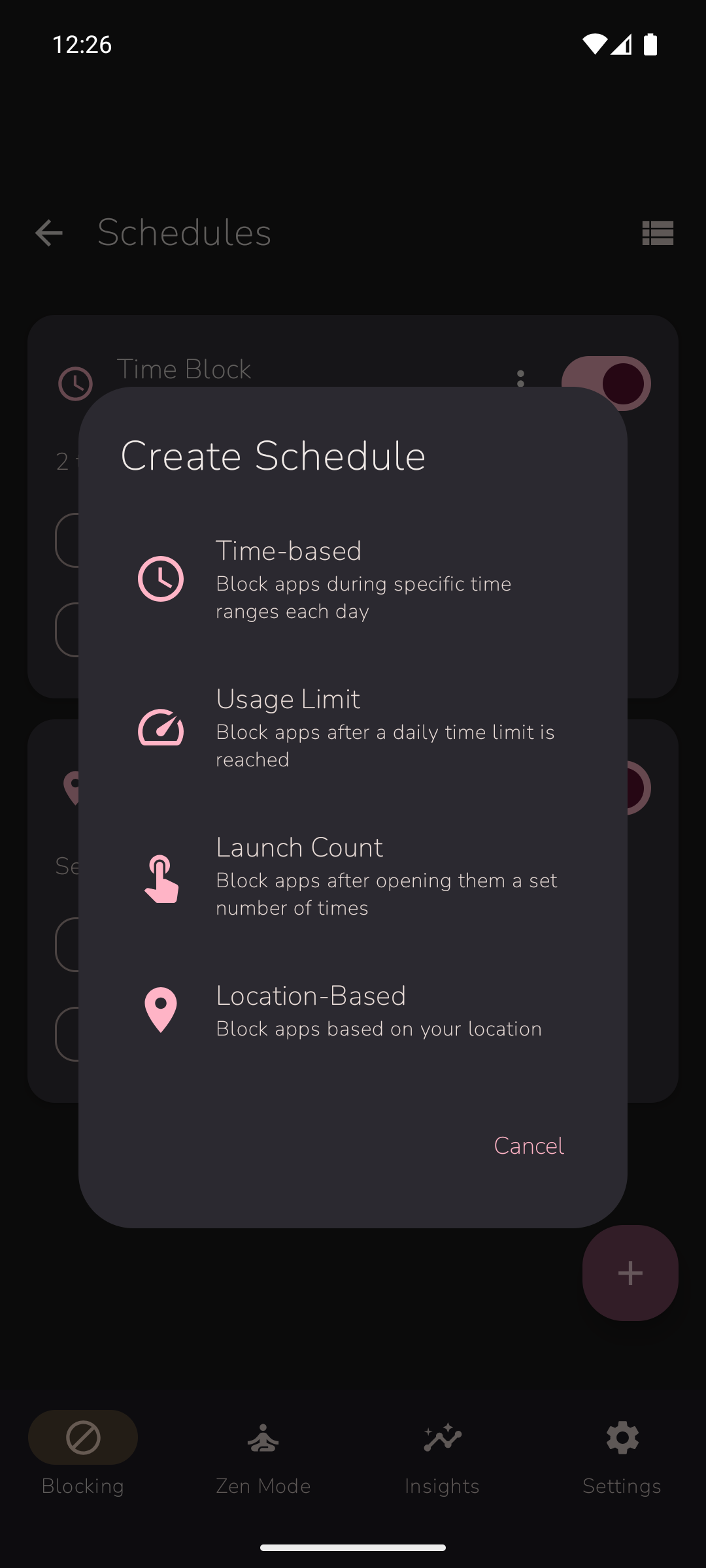
Schedules give you fine-grained control over when and how apps are blocked. Unlike Quick Block, schedules can be time-based, usage-based, launch-count-based, or location-based.
Creating a Schedule
-
Go to Blocking Tab
Navigate to the Blocking tab from the bottom navigation.
-
Tap "Schedules"
Open the Schedules section to see your existing schedules.
-
Tap the "+" Button
Choose the type of schedule you want to create.
-
Configure Your Schedule
Set the days, times, apps, and other options for your schedule.
Time-based Schedules
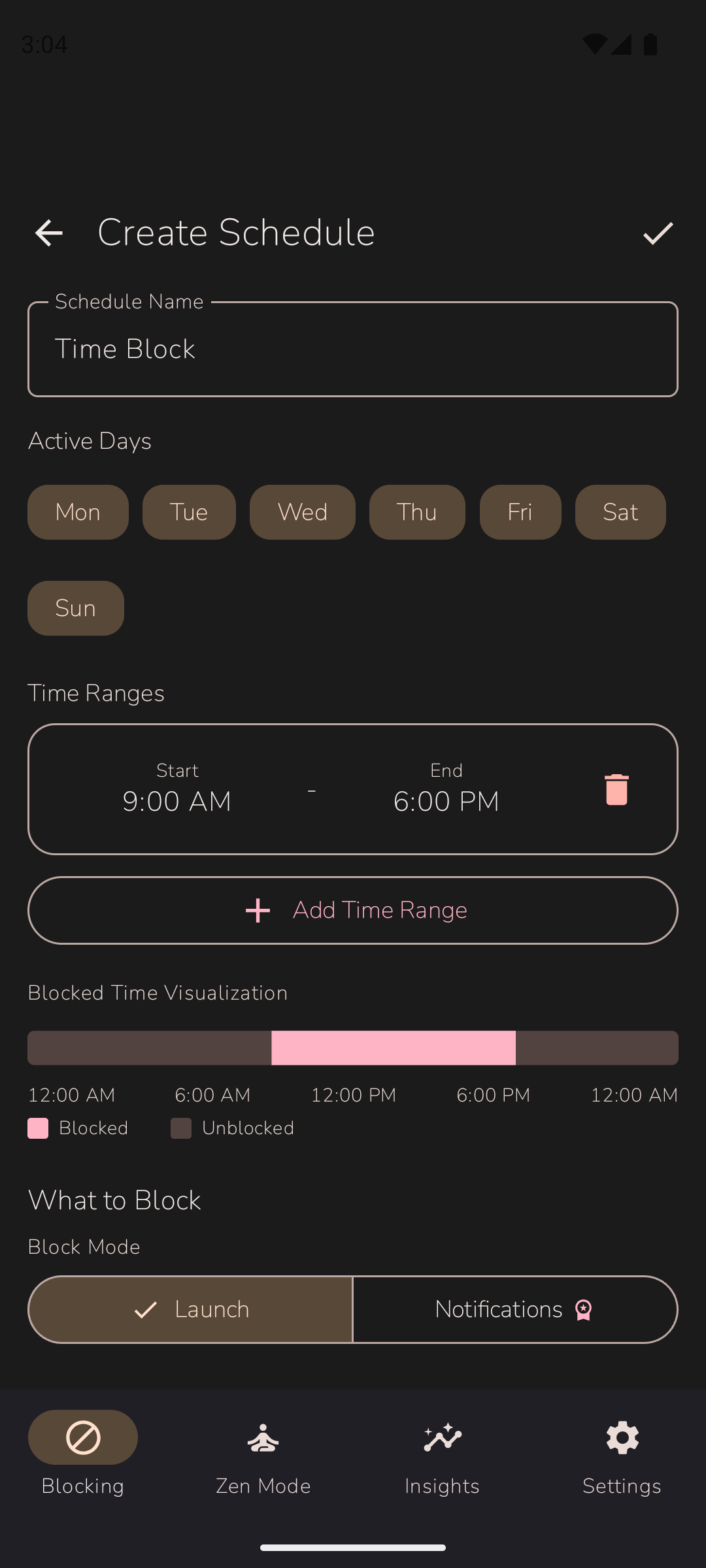
Block apps during specific time ranges on selected days. Perfect for work hours, study sessions, or bedtime routines.
Options
- Days: Select which days of the week the schedule applies.
- Time Ranges: Add one or more time ranges (e.g., 9:00 AM - 5:00 PM).
- Apps: Select which apps to block during this schedule.
- Block Mode: Choose whether to block app launches, notifications, or both.
Block social media apps Monday-Friday, 9:00 AM - 5:00 PM, to stay focused during work hours.
Usage Limit Schedules
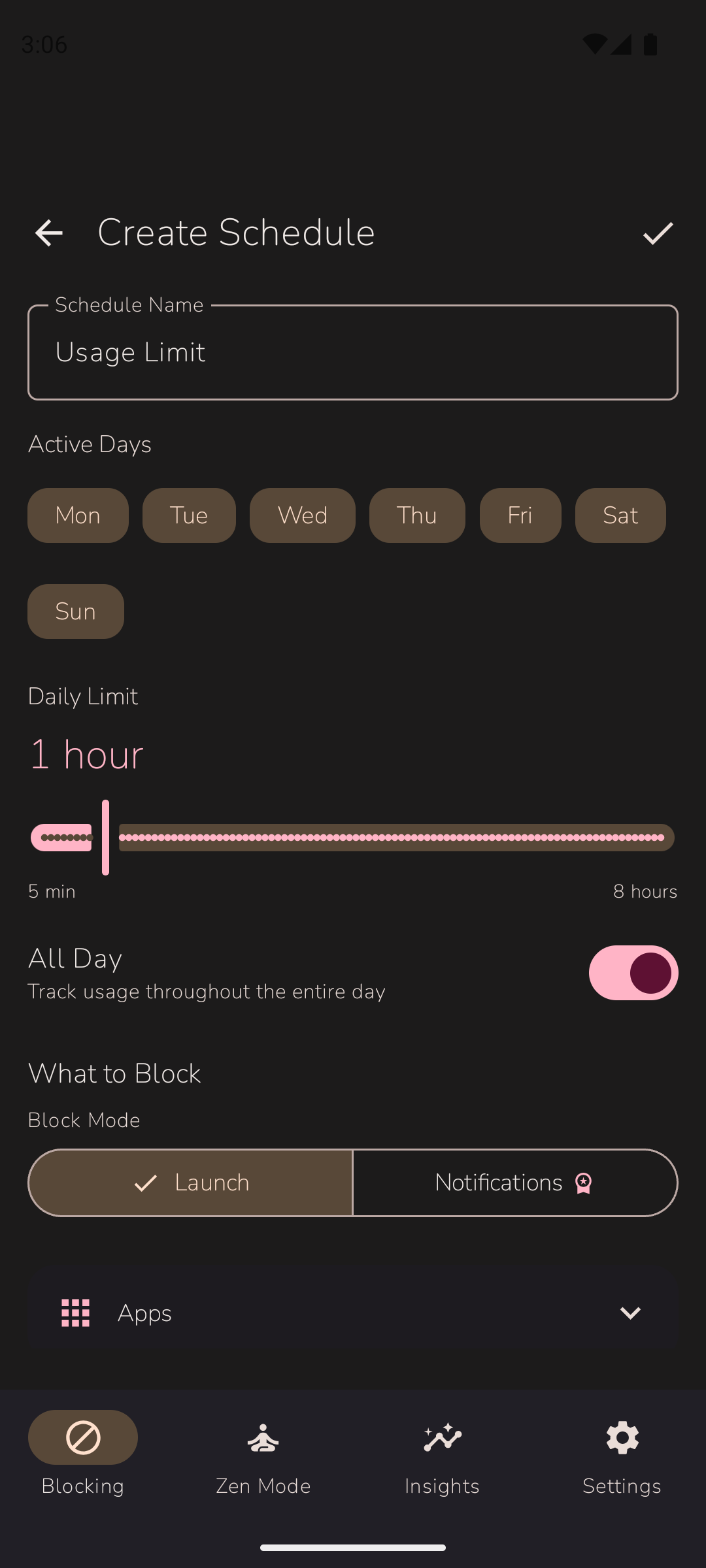
Set a daily time limit for specific apps. Once you've used the app for the allotted time, it becomes blocked for the rest of the day.
Options
- Daily Limit: Set how many minutes per day you're allowed to use the app (e.g., 30 minutes).
- Days: Select which days this limit applies.
- Apps: Select which apps share this usage limit.
- Reset Time: Usage resets at midnight by default.
Ainoa tracks your usage throughout the day. When you reach your limit, the app is blocked until the next day. You'll see a progress indicator showing how much time you have left.
Launch Count Schedules
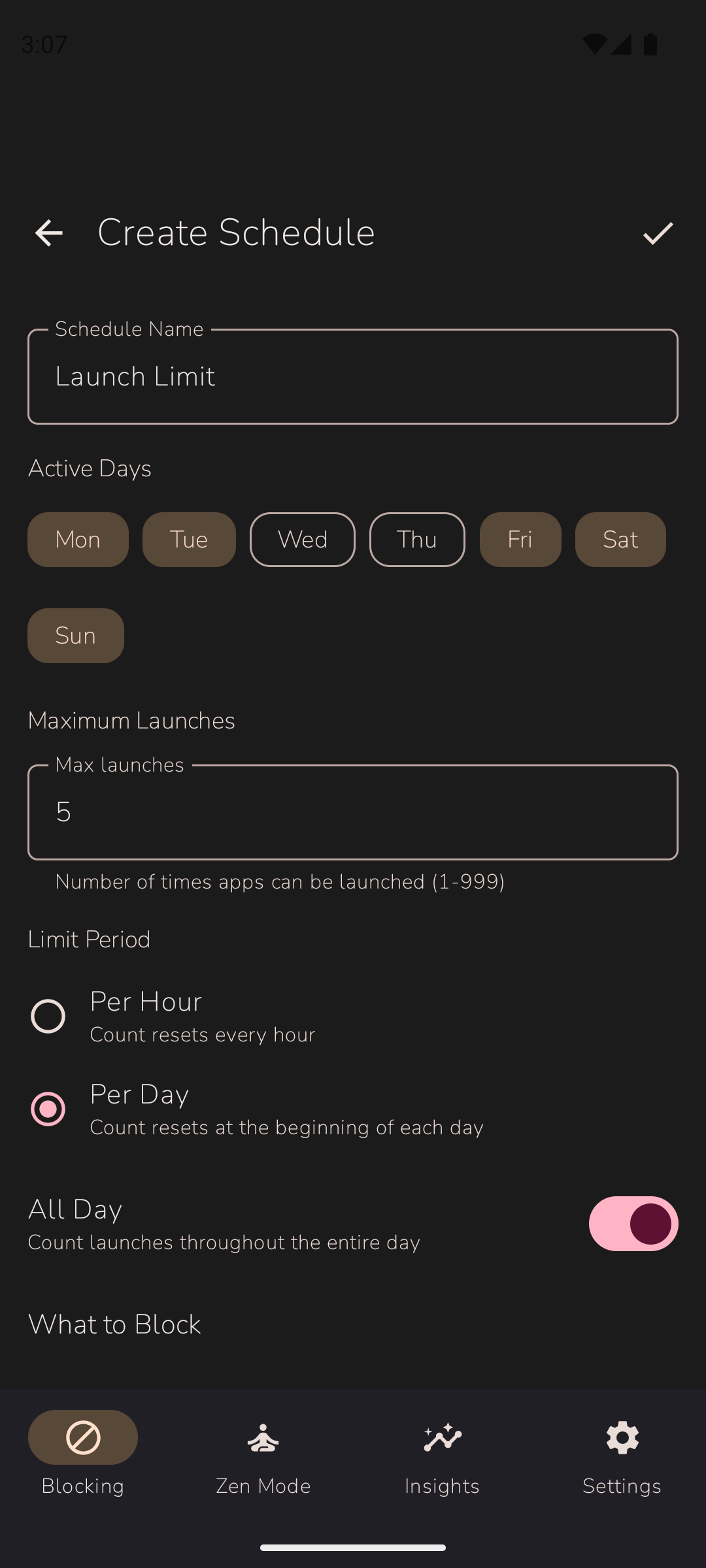
Limit how many times you can open an app per day. Great for apps where it's not about time spent, but about the habit of constantly checking.
Options
- Daily Launches: Set how many times you can open the app per day (e.g., 5 times).
- Days: Select which days this limit applies.
- Apps: Select which apps have this launch limit.
Allow yourself to check Instagram only 3 times per day, encouraging more intentional usage rather than mindless scrolling.
Location-Based Schedules
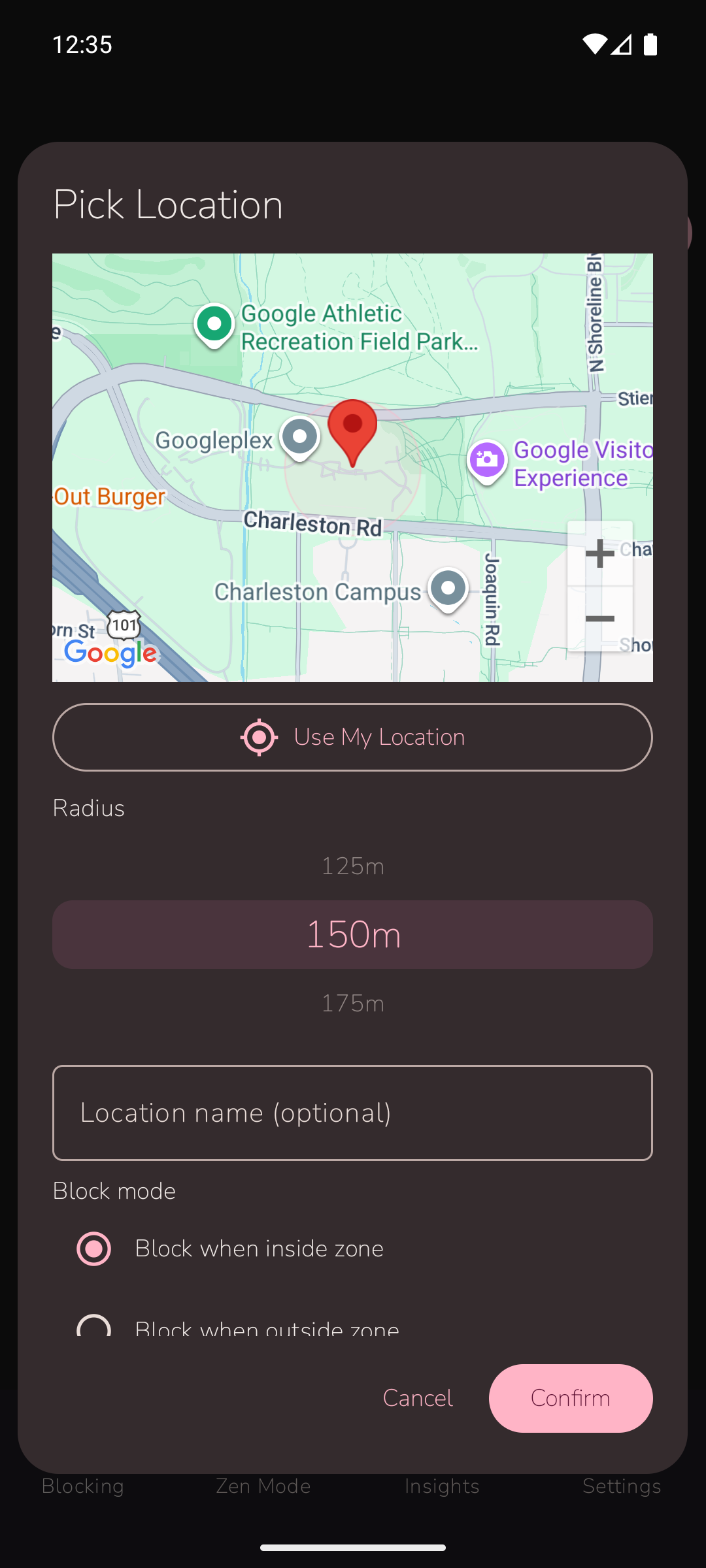
PremiumBlock apps based on your physical location. Define a zone on the map and choose whether to block apps when you are inside or outside that zone. Great for staying focused at work or school.
Options
- Location: Tap "Use My Location" or select a spot on the map.
- Radius: Set the zone size in meters around your chosen location.
- Block Mode: Choose to block when inside the zone (e.g., at work) or outside the zone (e.g., away from home).
- Days: Select which days the schedule applies.
- Time Ranges: Optionally restrict blocking to specific hours, or enable All Day.
- Apps: Select which apps to block in this zone.
If Ainoa cannot determine your location (GPS turned off, no signal), you will be treated as inside the zone and blocking will be active. A notification will inform you about this. This is a safety measure to prevent bypassing blocks by disabling GPS.
Block social media apps when you are within 200 meters of your office, Monday through Friday. Apps are automatically unblocked when you leave.
Block Modes
Each schedule can use different blocking modes to control what gets blocked.
Launch Blocking
Prevents the app from opening. When you try to launch a blocked app, Ainoa shows a gentle reminder screen instead.
Notification Blocking
Hides notifications from blocked apps. The apps can still be opened, but you won't be distracted by constant notifications.
Both
Blocks both app launches and notifications for complete focus.
What is Zen Mode?
Zen Mode is Ainoa's accountability feature. When activated, it locks your blocking settings so you can't impulsively disable them or change your schedules.
Why Use Zen Mode?
We've all been there - you set up blocking with the best intentions, but when temptation strikes, you simply disable the blocks. Zen Mode prevents this by requiring you to use a specific unlock method before making changes.
When Zen Mode is active, you cannot: add/remove blocked apps, change schedules, disable blocking, or modify Zen Mode settings. Your blocking configuration stays exactly as you set it.
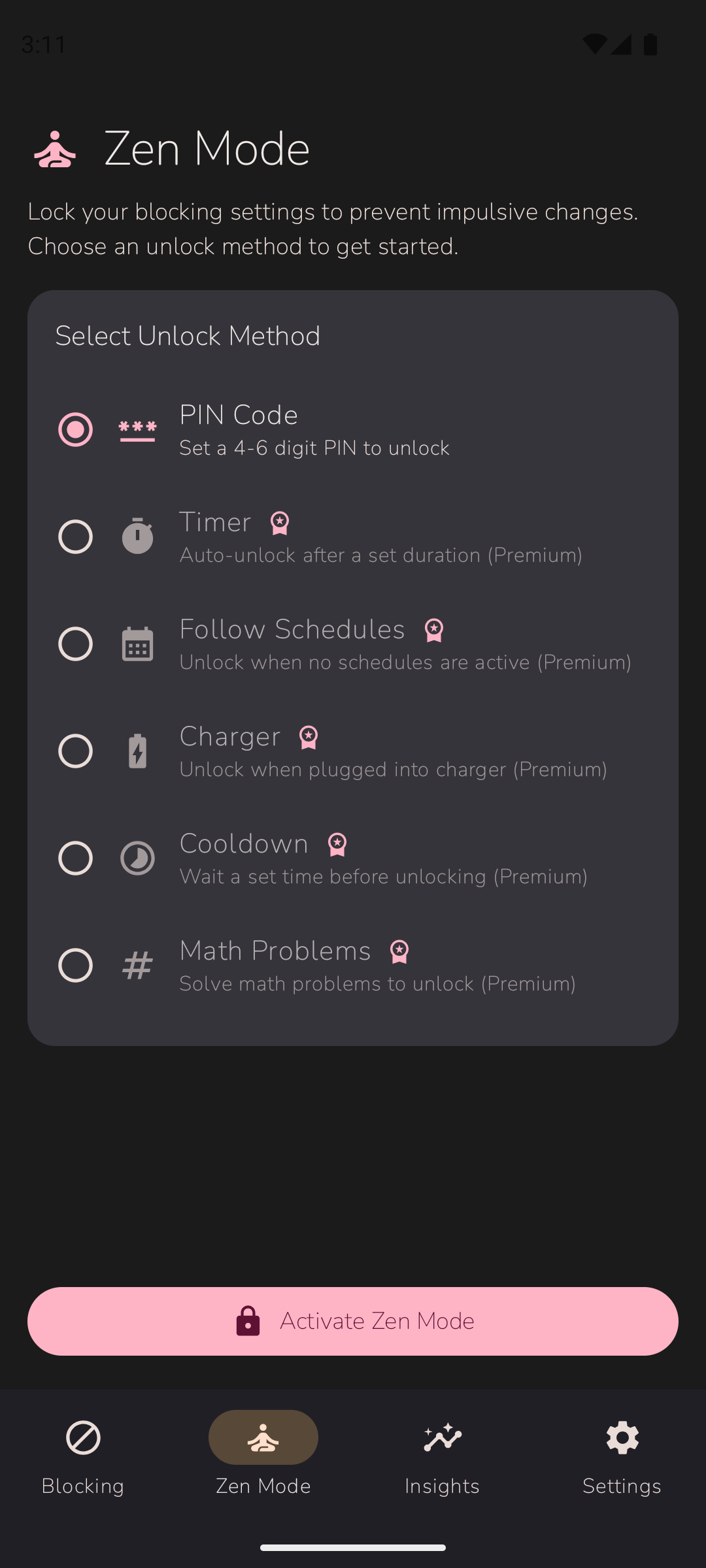
Unlock Methods
Choose how you want to unlock Zen Mode. Some methods are available for free, while others require Premium.
PIN Code
Set a 4-6 digit PIN that you must enter to unlock Zen Mode. Simple but effective.
Timer Premium
Zen Mode automatically unlocks after a set duration (1 hour to 7 days). Set it and forget it.
Follow Schedules Premium
Zen Mode unlocks when no blocking schedules are active. Perfect for work-hours blocking that automatically relaxes in the evening.
Charger Premium
Zen Mode unlocks when you plug in your phone charger. Useful if you want to make changes only when at your desk.
Cooldown Premium
Requires you to wait a set period (1-30 minutes) before unlocking. Gives you time to reconsider impulsive decisions.
Math Problems Premium
Solve math problems to unlock. The friction of solving problems helps prevent impulsive unlocking.
Screen Time Stats
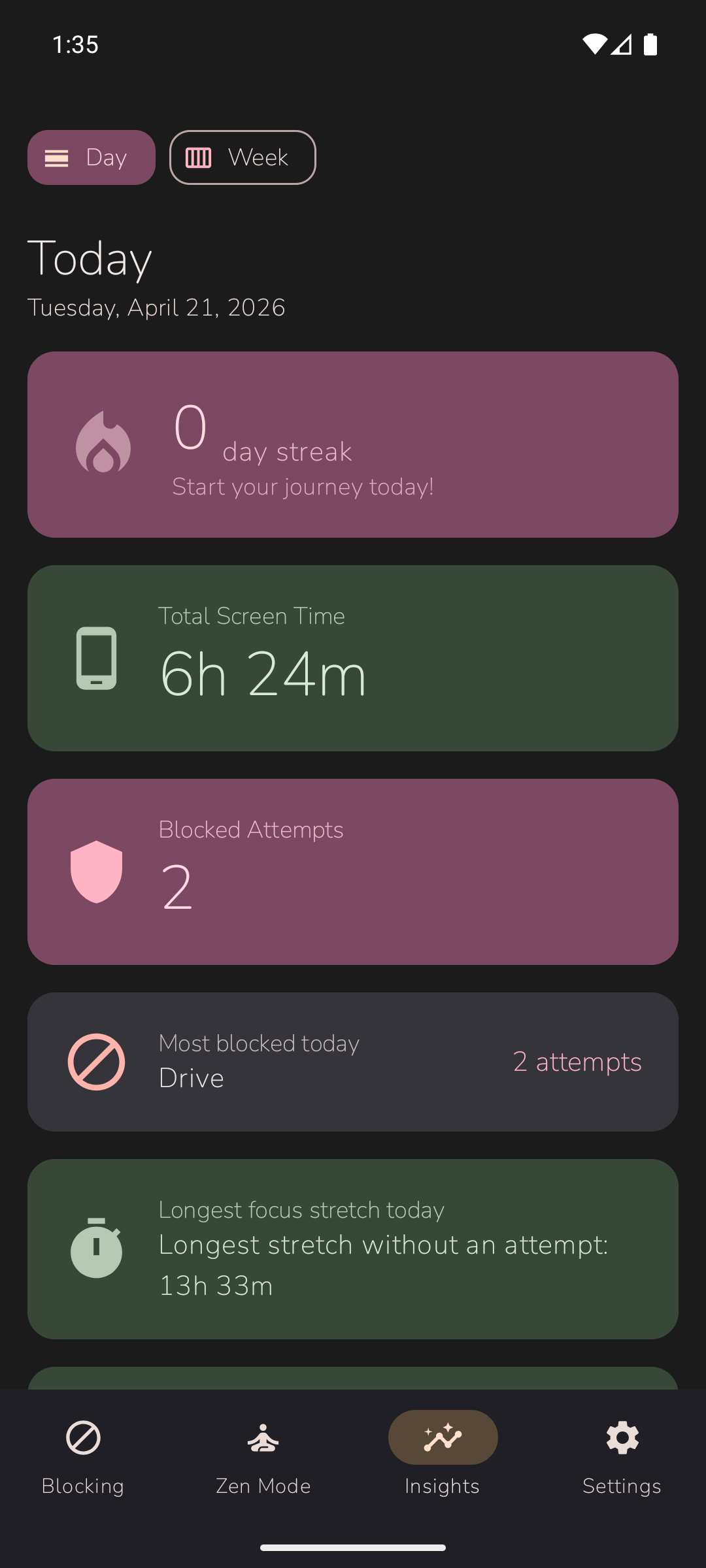
The Insights tab shows your digital wellness statistics, helping you understand your phone usage patterns.
Available Statistics
- Total Screen Time: How much time you've spent on your phone today.
- Blocked Attempts: How many times Ainoa successfully blocked a distraction.
- Time Saved: Estimated time saved by blocking distracting apps.
- Screen Unlocks: How many times you've unlocked your phone today.
- Focus Streak: How many consecutive days you've stayed on track.
- Most Blocked App: Which app Ainoa blocked the most today.
- Longest Focus Stretch: Your longest period without a blocked attempt.
- Today vs. Average: How today compares to your rolling average.
- Focus Score: A comprehensive view of your daily and weekly focus stats.
Switch to Week view for additional insights including best day, weekday vs. weekend comparison, schedule effectiveness, app trends, and more.
Day vs. Week View
Toggle between viewing today's statistics or your weekly averages to track your progress over time.
Focus Score
Ainoa tracks your focus progress with meaningful statistics that help you see how your digital habits are improving over time.
Your Focus Statistics
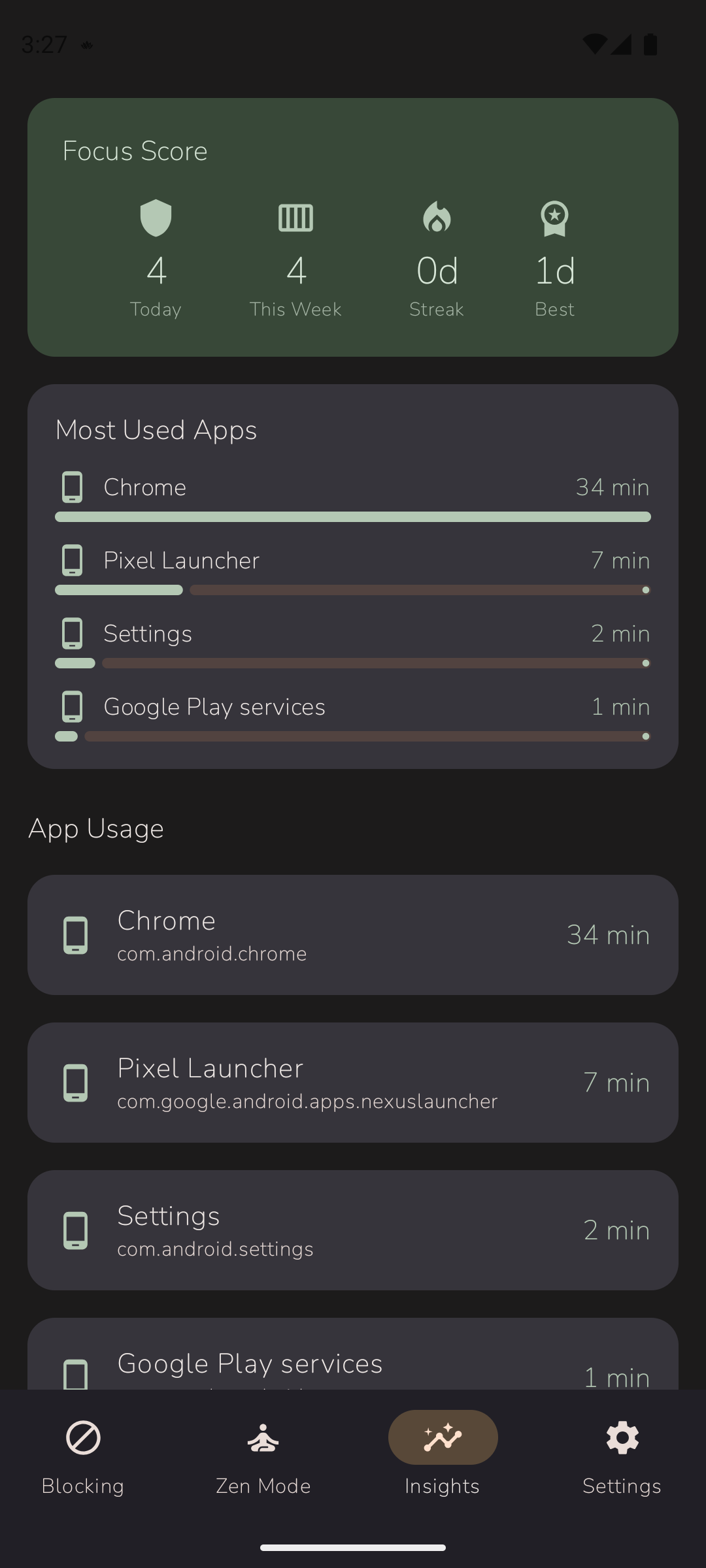
The Focus Score card shows four key metrics at a glance:
- Today: How many distractions you resisted today
- This Week: Your weekly blocking total
- Streak: Consecutive days meeting your focus goals
- Best: Your longest streak ever achieved
Motivational Messages
When Ainoa blocks a distracting app, you will see a calming motivational message encouraging mindful choices. Each message is randomly selected to keep the experience fresh and supportive.
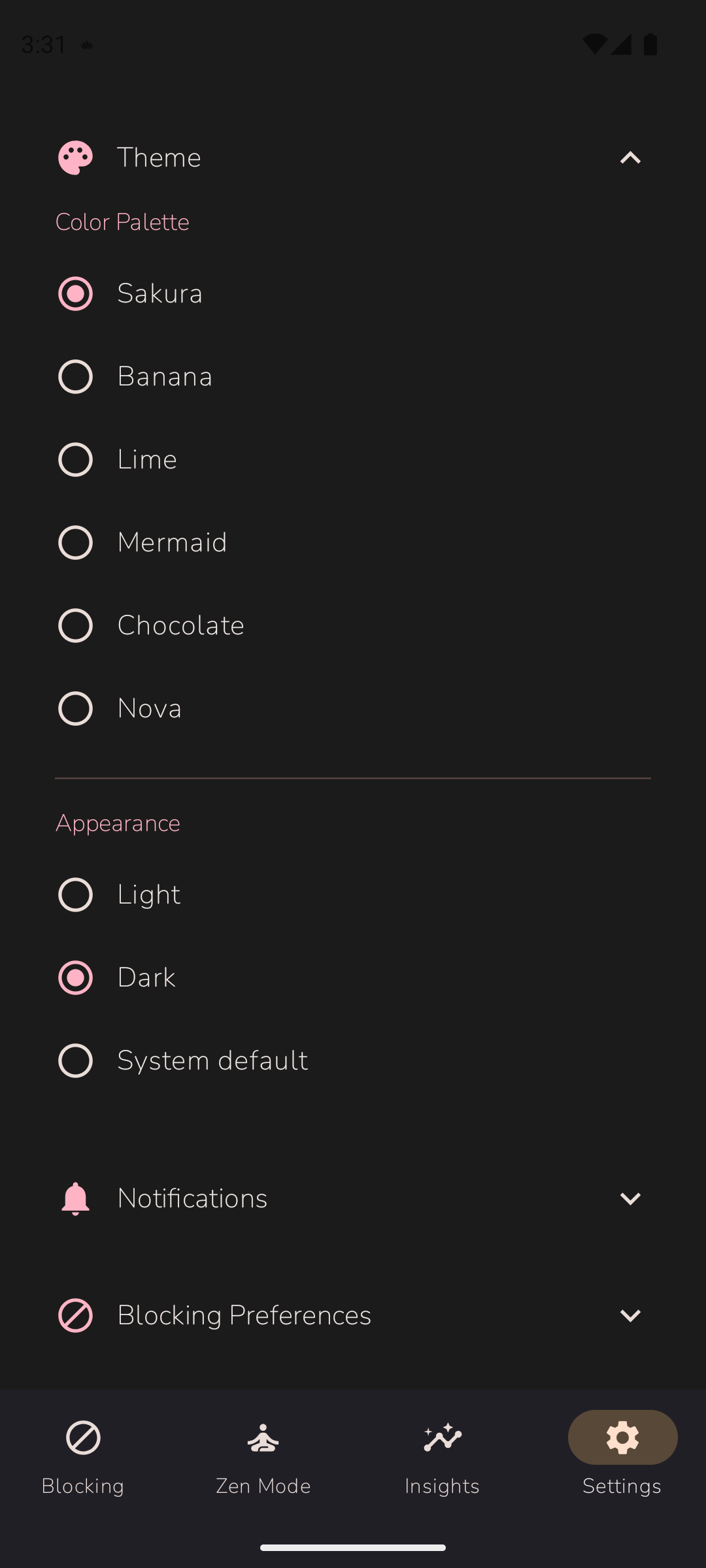
Appearance Settings
Customize how Ainoa looks to match your preferences.
Theme
Choose from several beautiful color themes:
- Sakura: Soft pink and warm tones (default)
- Banana: Warm golden yellows
- Lime: Fresh green tones
- Mermaid: Calming teal and aqua
- Chocolate: Rich warm browns
- Nova: Cool steel blue
Dark Mode
Enable dark mode for easier viewing at night. You can set it to follow your system settings automatically.
General Settings
Time Format
Choose between 12-hour (AM/PM) or 24-hour time format throughout the app.
Language
Ainoa supports 50+ languages. Select your preferred language in Settings > Language.
Notifications
Configure which notifications you receive from Ainoa, including blocking reminders and progress updates.
Premium Features
Unlock additional features like keyword blocking, unlimited apps and URLs, cloud backup, and advanced analytics with an Ainoa Premium subscription.
Feedback
Found a bug or have an idea? Use the built-in feedback forms in Settings:
- Report a Problem: Describe any issues you encounter. Your device info is automatically included to help us diagnose the problem.
- Request a Feature: Tell us what you would like to see in future updates.
Your feedback goes directly to our development team and helps shape the future of Ainoa.
Social Media
Follow Ainoa for updates, tips, and community:
- TikTok: @ainoa.app
- Instagram: @getainoa
Frequently Asked Questions
Troubleshooting
Blocking Isn't Working
-
Check Permissions
Check the main screen in Ainoa — if any permissions are missing, a warning card will appear with a button to grant them.
-
Verify Accessibility Service
Go to your phone's Settings > Accessibility > Ainoa and make sure it's enabled.
-
Check Battery Optimization
Some phones aggressively kill background apps. Disable battery optimization for Ainoa in your phone's settings.
-
Restart the Service
Try disabling and re-enabling the Ainoa accessibility service:
- Open your phone's Settings app
- Go to Accessibility (search for it if you can't find it)
- Find Ainoa in the list of installed services
- Toggle it OFF, wait a few seconds
- Toggle it ON again
- Return to Ainoa and verify blocking works
App Crashes on Launch
- Make sure you're running the latest version from the Play Store
- Try clearing the app cache: Settings > Apps > Ainoa > Clear Cache
- If the problem persists, try uninstalling and reinstalling the app
Website Blocking Not Working
Website blocking works with most browsers but may not work with all. Supported browsers include Chrome, Firefox, Edge, and Samsung Internet. Some browsers with built-in VPNs or privacy features may bypass blocking.
Streak Not Updating
Your streak updates once per day based on your screen time goals. Make sure you have active blocking schedules and are meeting your daily targets.
Contact us at click to reveal email with details about your device, Android version, and the issue you're experiencing.
Contact Us
We're here to help! If you have questions, feedback, or need assistance, don't hesitate to reach out.
Email Support
Send us an email at click to reveal email. We typically respond within 24 hours on business days.
Feature Requests
Have an idea for a new feature? We'd love to hear it! Email us with "Feature Request" in the subject line.
Ainoa is made with care in Finland by AppBear.